An Indian rooftop solar buyer is making a one-to-three-lakh-rupee decision and then waiting weeks for net-metering, inspection, and subsidy disbursal. The number-one source of support calls is simply "what's happening with my installation?" The evSuryam customer portal answers that question for them — a branded, always-on window into their own project that cuts your phone time and makes you look like the organised, professional vendor you are.
Overview
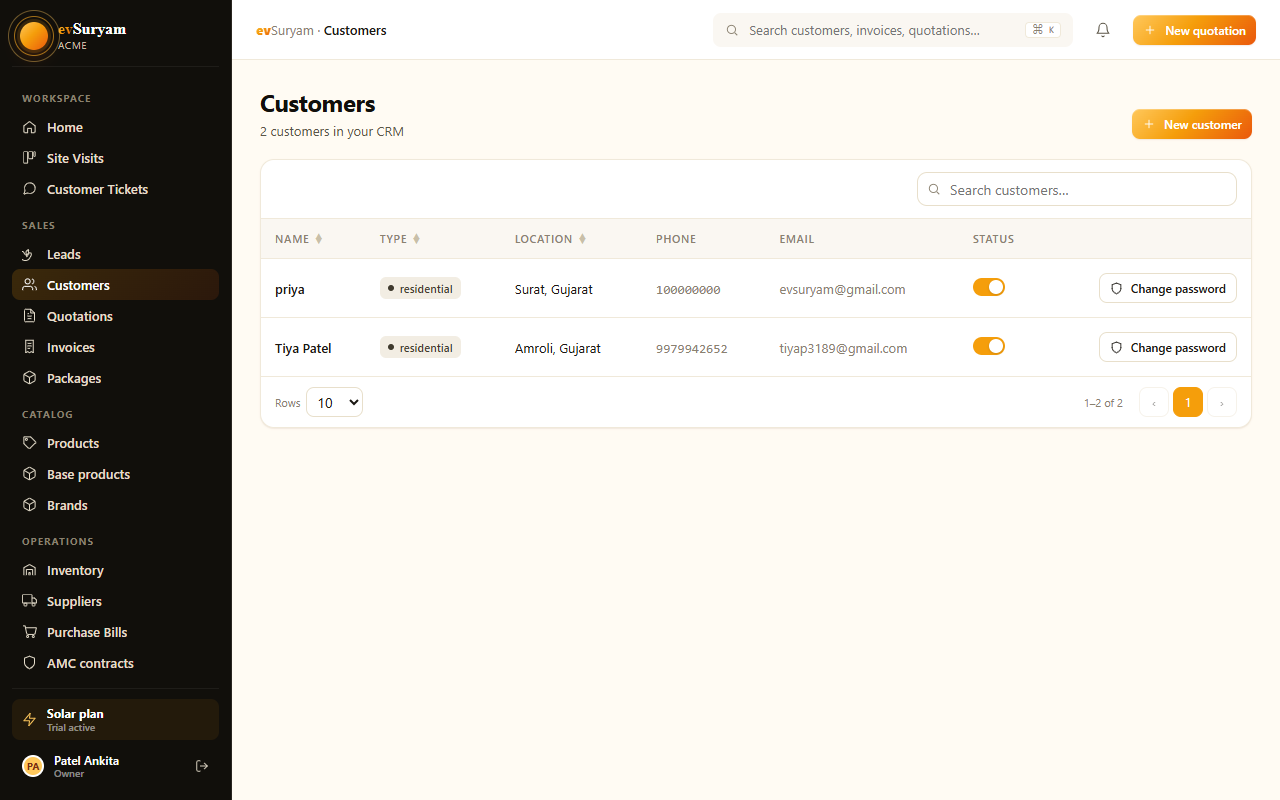
Every customer you add can be given portal access. They log in to a clean dashboard that carries your logo and brand colour — there is no evSuryam branding in front of your customer. From there they see their project, their documents, and a way to reach you.
public/images/docs/customer-portal.pngWhat customers get
The portal is deliberately simple so a homeowner who isn't tech-savvy can use it. Three things sit front and centre:
- Project status — a clear timeline showing where their job is, from survey to commissioning, mirroring your internal installation pipeline.
- Invoices & documents — every quotation, tax invoice, and receipt available to view and download as a PDF, so they never have to email you asking for a copy.
- Support tickets — a button to raise an issue (an inverter fault, a billing query) that lands directly in your central inbox.
They see only their own projectA customer's portal is scoped to their records alone. They can never see another customer's data, your pricing to other clients, or anything from your internal workspace.
Branding the portal
The portal inherits the branding you set during onboarding, so if you've already completed setup there's nothing extra to do here. To review or change it:
- Open Settings → Branding.
- Upload your logo (a transparent PNG works best) — it appears in the portal header and on PDFs.
- Pick your brand colour — buttons, links, and accents in the portal adopt it.
- Set the display name customers see in the portal and in notification emails.
- Click Save. Changes apply to every customer's portal immediately.
The full branding walkthrough lives in Getting started, step 2.
Inviting a customer
A customer only gets portal access when you invite them — nothing is exposed by default. The flow takes seconds:
- Open the customer's record from the Customers list.
- Click Invite to portal.
- Confirm their email address (pre-filled from the customer record).
- Click Send invite. They receive a branded email with a secure link and set their own password.
- Once they accept, the record shows Portal: Active, and they can log in any time.
Invite at handover, not at quoteThe portal shines once a deal is won and the install is underway. Send the invite when the customer signs — that's when "track my project" becomes genuinely useful and your support calls drop.
Support tickets
When a customer hits a problem — an inverter throwing a fault code, a question about a bill — they raise a ticket from the portal instead of calling a number that might go unanswered. Here's the flow:
- The customer clicks Raise a ticket, picks a category, describes the issue, and can attach a photo.
- The ticket lands in your central support inbox with the customer and project already linked — no hunting for who they are.
- Your team replies from inside evSuryam; the customer sees the response in their portal and by email.
- When resolved, you close the ticket and it's archived against that customer's history.
Because every ticket is tied to a customer and project, you build a service record over time — invaluable for warranty claims and AMC renewals.
Progress & photo logs
The project timeline in the portal is driven by your internal pipeline, so when your installer moves a job from Material dispatched to Installation in progress, the customer's portal updates automatically. You don't write a separate status update — keeping your own records current is the customer communication.
Site photos your installers upload can be surfaced to the customer too, so they can see their panels going up without a site visit. For how to capture good site photos that double as customer reassurance and warranty evidence, see photo logging best practices.
Payments & subsidy status
Money is the other big anxiety for a solar buyer. The portal shows each invoice with its paid / outstanding status, so the customer always knows what they owe and what they've cleared — fewer "did you get my payment?" calls.
For residential customers claiming the central subsidy, the portal can also display the subsidy stage — application filed, inspection done, disbursal pending or received. This is one of the most-asked questions in the whole solar journey, and answering it on a screen the customer can check themselves is a huge relief for your team. See the PM Surya Ghar subsidy guide for how the subsidy workflow maps to these stages.