Welcome to evSuryam — the operating system for India's rooftop solar vendors. This guide walks you through the one-time setup that makes every quotation, invoice, and installation downstream accurate and on-brand. Budget about 15 minutes the first time.
Overview
When you first log in you land on the Dashboard. Before you create your first quote, complete the five setup steps below. They live under Settings in the left sidebar and only need to be done once.
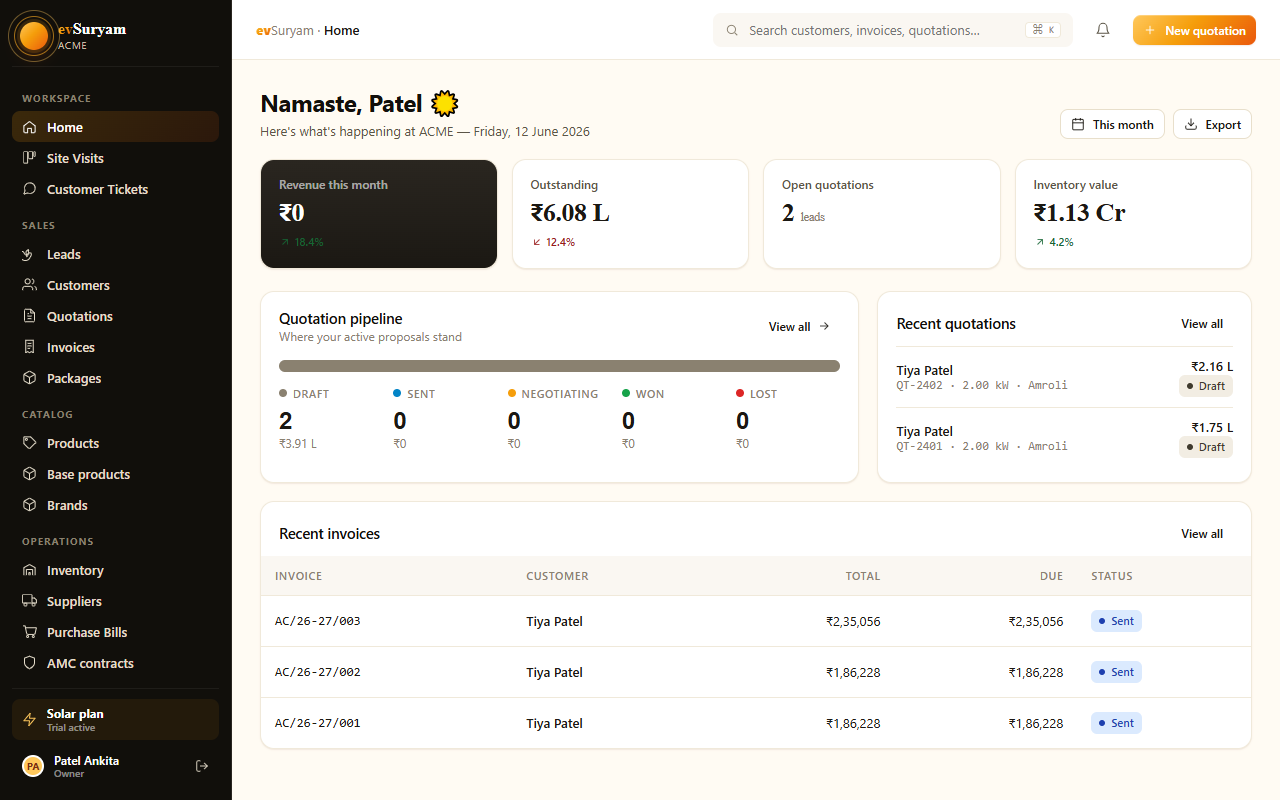
public/images/docs/getting-started.pngBefore you beginKeep your GSTIN, company PAN, and a high-resolution logo (PNG, transparent background) handy. You'll need them in the first two steps.
1. Company profile & GSTIN
Your company details print on every PDF — quotations, invoices, and purchase orders — so get them right first.
- Open Settings → Company Profile.
- Enter your legal business name, registered address, and state. The state determines whether CGST+SGST or IGST applies on a given invoice.
- Add your GSTIN and PAN. evSuryam validates the GSTIN format and derives your state code from it.
- Set your contact email and phone — these appear in the footer of customer documents.
- Click Save.
Double-check the stateYour registered state drives the entire GST engine. If it's wrong, CGST/SGST/IGST will be miscalculated on every invoice. See GST & compliance for details.
2. Branding
Make evSuryam look like your business. Under Settings → Branding:
- Logo: upload a transparent PNG. It appears on PDFs and in your customer portal header.
- Brand colour: pick your primary colour — buttons and accents in the customer portal adopt it.
- Display name: the name customers see in the portal and email notifications.
3. Default terms & conditions
Stop re-typing the same clauses on every quote. Save your standard payment terms, warranty statements, and validity period once under Settings → Quotation Defaults. Every new quotation pre-fills with them, and you can still edit per-quote when needed.
4. Build your catalog
Your catalog is the list of products and services you sell. A well-built catalog means quotes assemble in seconds with taxes already correct.
| Field | Why it matters |
|---|---|
| HSN / SAC code | Drives the GST rate and prints on the invoice. Panels and modules are typically 8541; services use a SAC code. |
| GST rate | e.g. 12% on solar goods, 18% on standalone services. Applied automatically on every quote. |
| Unit & price | Per-watt, per-piece, or per-job. Becomes the default line rate. |
| Reverse charge | Flag imported inverters here — see reverse-charge on imported inverters. |
Add your core lines first: panels, inverters, mounting structure, BOS (balance of system), and your installation service. You can refine quantities and pricing per quote later.
5. Invite your team
Collaboration is the point. Bring your sales reps and installers in so each person only sees what they need.
- Go to Settings → Team and click Invite user.
- Enter their email address.
- Assign a role — Sales Rep, Installer, or Admin — to scope their access.
- They receive an email invite and set their own password.
Need finer control over who sees financials? See Team & roles and the custom roles example.
What's next
With setup done, you're ready to sell. The natural next step is your first quotation — the 30-minute walkthrough takes you from catalog to a sent quote end-to-end.