Quotations are where every solar deal begins, and invoices are where it gets recognised in your books. evSuryam connects the two so a single accepted quote becomes a compliant tax invoice without re-keying a line item or recalculating a paisa of GST. And because most vendors sell a handful of standard systems over and over, you can bundle one into a reusable package and quote it in seconds. This guide walks the whole journey: building a package, quoting from it, sending, converting, and reconciling the money that comes back.
Overview
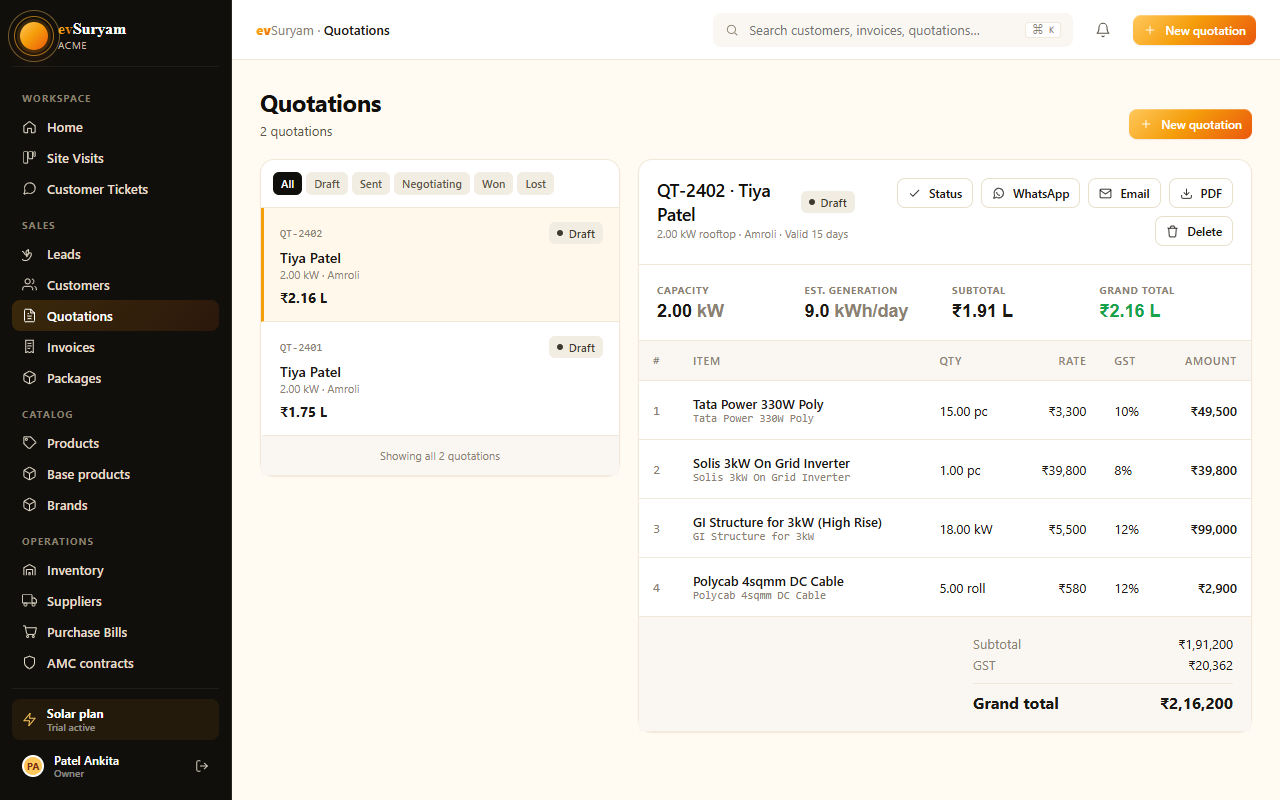
The sales module lives under Sales in the left sidebar, split into Quotations and Invoices. A quote is editable and non-binding; an invoice is a locked, numbered legal document. The golden rule in evSuryam: you quote freely, then convert once — conversion is the moment the document becomes immutable for accounting.
Sitting alongside them is Packages — pre-built system bundles you assemble once and reuse on every quote. A 3 kW residential rooftop, a 10 kW commercial system: define each as a package, and a new quotation is mostly a matter of picking it and confirming the customer.
public/images/docs/quotations-invoices.pngBefore you beginA well-built catalog makes both packages and quotes almost instant — items carry their own HSN code, GST rate, and default price. If you haven't set yours up yet, start with Getting started, then come back here.
1. Build a reusable package
A package is a fixed bundle — the panels, inverter, mounting structure, balance-of-system, and the standard charges that go with a given system size. Build it once under Packages and it becomes selectable in every new quotation, so you never re-assemble the same 3 kW rooftop twice.
- Open Packages from the sidebar and click New package.
- Name and classify it. Give it a clear name (e.g. “3 kW Residential Rooftop”), pick a category (Residential, Commercial, Industrial, or Service), and set the system capacity in kW.
- Set the headline price and target margin (%). These drive the package cards and your average-margin KPI.
- Build the Bill of Materials. Under Bill of Materials, click Add component for each item — select the base product, enter its SKU, and set the quantity. Add one row per component (module, inverter, mounting, DC cable, and so on).
- Fill in Pricing & Charges. Enter the Package Value, DGVCL meter charges, stamp, structure, and subsidy amount. evSuryam shows the Total without subsidy and Total with subsidy live as you type.
- Set Status to Active (so it appears in the quote selector) — or Draft to keep it hidden while you finish it — and optionally toggle Show on customer portal. Click Create package.

public/images/docs/quotations-invoices-2.pngOnly Active packages are selectableDraft and archived packages won't appear in the quotation dropdown — flip a package to Active when it's ready to sell. Editing a package later never changes quotations already built from it; existing quotes keep the figures they were created with.
2. Start a quote from a package
This is the payoff. Starting a quotation from a package pre-loads the entire bundle, so a quote becomes confirm-the-customer-and-tweak rather than build-from-blank.
- Open Sales → Quotations and click New quotation.
- Select the customer. Their billing state is captured here — it still decides CGST+SGST vs IGST, package or no package.
- In the “Start from a package (optional)” dropdown, choose your package. (Leave it on “No package — build from scratch” to quote manually — see the next section.)
- Watch it pre-fill. evSuryam instantly loads the package's capacity, every component as a line item from the Bill of Materials, and the charge fields — Package Value, DGVCL charges, structure, stamp, and subsidy amount.
- Apply current pricing. Package lines load at ₹0 so you set today's rate on each line — or pick the concrete product to pull its live catalog rate. Package Value then tracks the live sum of rate × quantity.
- Adjust freely. Add or remove lines, change quantities, or edit any charge for this specific site. The package is a starting point, not a lock. Click Save.
Charges carry over but stay editableThe DGVCL, stamp, structure, and subsidy figures come from the package, but you can override any of them per quote — adjust for a tricky roof or a different discom without touching the master package. The subsidy field also feeds the customer's payable; see PM Surya Ghar subsidy.
3. Build a quote from scratch
No matching package? Build the quote manually. A quote in evSuryam is three things: a customer, a set of catalog lines, and your terms.
- Open Sales → Quotations, click New quotation, and leave the package selector on “No package”.
- Select the customer. Pick an existing customer or add one on the fly. Their billing state decides CGST+SGST vs IGST downstream, so get it right.
- Add catalog items. Search and pick your panels, inverter, mounting structure, BOS, and installation service. Each line pulls its rate, unit, and HSN code from the catalog.
- Adjust quantities and per-line price. Override the default rate for this deal if you're discounting — the tax recomputes instantly.
- Review the terms block. Your default payment terms, warranty statement, and validity period pre-fill from Settings. Edit per-quote if this deal is special.
- Click Save. The quote lands in Draft status with its own quotation number.
Quotation numbers are not invoice numbersA quotation number is for your reference only and can be regenerated freely. It carries no statutory weight. The legally significant number is the invoice number assigned at conversion — and that one locks.
4. How tax is auto-applied
You never type a GST rate on a quote — whether you started from a package or from scratch. evSuryam derives it from the HSN/SAC code on each catalog line, then chooses the right tax heads from the customer's state versus your registered state:
- Intra-state (customer in your state) → the rate splits into CGST + SGST, half each.
- Inter-state (customer in a different state) → the full rate applies as a single IGST head.
So a 12% solar module line shows as 6% CGST + 6% SGST for a same-state customer, or 12% IGST for an out-of-state one. The line-by-line breakdown and the document total update live as you edit. For the full mechanics — rate tables, ITC, and report exports — see GST & compliance.
5. Preview & send the PDF
Before anything leaves your workspace, click Preview to see the exact branded PDF the customer will receive — your logo, GSTIN, the line items, the tax breakdown, and your terms.
- Email directly: click Send to email the PDF from evSuryam. The quote moves to Sent and the timestamp is recorded.
- Download: grab the PDF to share over WhatsApp or print for a site visit.
- Customer portal: if the customer has portal access, the quote also appears there for them to view and accept online — see Customer portal.
6. Validity & revisions
Every quote carries a validity period (e.g. 15 days) printed on the PDF. After it lapses, the prices are no longer guaranteed — useful when module or inverter costs move.
Customers negotiate, so quotes get revised. In evSuryam you edit the existing quote and re-send it; the customer always sees the latest figures. Because a Draft or Sent quote is not yet a financial document, revising it has no accounting consequence — that's exactly why conversion is a deliberate, separate step.
Revise before you convert, not afterOnce a quote is converted to an invoice, the invoice is locked. If the customer renegotiates after conversion, you can't just edit the invoice — you'd issue a credit note or a fresh invoice. Settle the numbers while it's still a quote.
7. Quote status lifecycle
Each quotation moves through a simple lifecycle so your pipeline reporting stays honest. Status changes are partly automatic (sending bumps Draft → Sent) and partly manual (you mark the outcome).
| Status | Meaning | Typical next action |
|---|---|---|
| Draft | Being built or revised; not yet shared with the customer. | Finish editing, then Send. |
| Sent | Delivered to the customer and awaiting a decision. | Follow up; mark Won or Lost. |
| Won | Customer accepted. The deal is yours to convert. | Convert to invoice. |
| Lost | Customer declined or went elsewhere. | Record the reason for win/loss analysis. |
Marking outcomes diligently feeds your conversion-rate metrics and keeps the installation pipeline fed only with deals that are actually Won.
8. Convert to a GST invoice
When a customer accepts, conversion turns the quote into a compliant tax invoice in one click — carrying every line, quantity, and tax head across untouched.
- Open the accepted (Won) quotation and click Convert to invoice at the top right.
- Review the line items and the final GST calculations — this is your last chance to catch a wrong quantity or a stale price.
- Click Generate invoice. evSuryam assigns the next sequential invoice number and locks it — the document is now an immutable financial record.
- The invoice is ready to download, email, or surface in the customer portal. It also becomes available for your GST report exports.
Why the lock mattersGST law requires invoice numbers to run in an unbroken, sequential series. Locking on conversion guarantees you never duplicate or skip a number, which is exactly what a GST audit checks. Need to cancel one? Use a credit note rather than deleting the invoice.
9. Track & record payments
Solar deals rarely settle in one shot — there's usually an advance, a payment on delivery, and a balance on commissioning. evSuryam tracks each invoice's payment status and supports partial payments against it.
- Open the invoice and click Record payment.
- Enter the amount received, the date, and the method (UPI, NEFT, cheque, cash).
- Save. The invoice's outstanding balance drops by that amount and the status updates automatically.
- Repeat as more instalments arrive until the balance reaches zero and the invoice reads Paid.
The status reflects reality at a glance: Unpaid (nothing received), Partially paid (some received, balance outstanding), or Paid (fully settled). Government subsidy money can also be logged as a tagged payment against the invoice — see PM Surya Ghar subsidy for that flow.
What's next
With an invoice raised and payments flowing, the deal moves into delivery and commissioning. Track that work in the installation pipeline, and make sure your month-end filing is clean with GST & compliance.