A rooftop solar business is a team sport — a sales rep closing the deal, an installer on the roof, an accountant reconciling GST, and you holding it all together. evSuryam lets everyone work in one workspace while making sure each person only sees what their job needs. This page explains the built-in roles, how to invite people, and how to lock down sensitive numbers like your margins.
Overview
Every person you invite is assigned a role. A role is a bundle of permissions that decides which screens they can open and which actions they can take. evSuryam ships with three ready-made roles that cover most vendors on day one, and higher plans let you build your own from scratch.
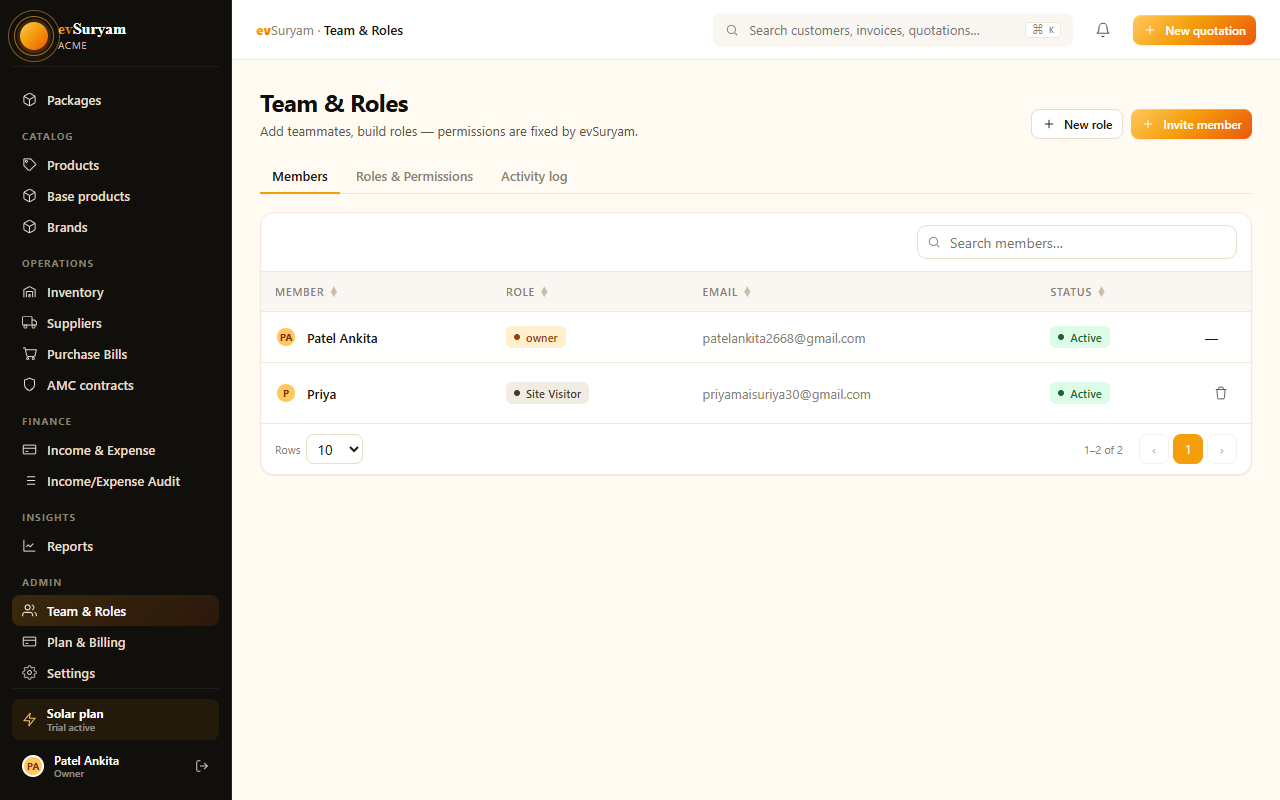
public/images/docs/team-roles.pngRoles, not individualsPermissions attach to the role, never to the person. Change what a role can do and every user with that role updates instantly — no need to edit people one by one.
Pre-defined roles
Three roles are available on every plan and are ready to use the moment you sign up:
- Admin — full access to everything: sales, inventory, finance, installations, and settings. This is you and your business partners. Admins can invite users, change company settings, and see every rupee of margin.
- Sales Rep — builds quotations and manages their customers, but does not see purchase costs or company-wide margins. Perfect for a field salesperson who needs to quote on-site without exposing what you paid for the panels.
- Installer — sees the assigned installation jobs, updates the pipeline stage, and uploads site photos. No pricing, no quotations, no finance. Ideal for your on-roof technicians and site supervisors.
What each role can see
The table below summarises the default access for each built-in role. A check means full access; a dash means the area is hidden from that role entirely.
| Area | Admin | Sales Rep | Installer |
|---|---|---|---|
| Quotations & invoices | (own) | — | |
| Customer financials | Sale price only | — | |
| Purchase costs & margins | — | — | |
| Inventory & catalog | View | — | |
| Installation pipeline | View | (assigned) | |
| Photo logs | View | ||
| Company settings & team | — | — |
Inviting users
Adding a team member takes under a minute. They never need a password from you — they set their own.
- Open Settings → Team and click Invite user.
- Enter the person's email address.
- Pick a role — Admin, Sales Rep, Installer, or a custom role you've built.
- Click Send invite. They receive an email, click the link, and set their own password.
- Once they accept, they appear on the Team screen as Active.
This is the same flow covered in Getting started — see that guide for first-time setup of your whole workspace.
Pending invites count toward seatsAn invited-but-not-yet-accepted user occupies a seat on your plan. If you hit your seat limit, revoke stale invites from the Team screen before inviting someone new.
Restricting financial visibility
The single most common reason vendors set up roles is to hide margins. Your panels might cost you 18 per watt and sell at 24 — you don't want a field rep (or a departing employee) walking out with your full cost sheet.
By default the Sales Rep role already enforces this: reps see the sale price they quote a customer, but the purchase cost, landed cost, and margin columns are blanked out across quotations, the catalog, and reports. Installers see no pricing at all. Only Admins — and any custom role you explicitly grant the Finance: margins permission — can see what a job actually earns.
Exports respect roles tooA Sales Rep can't bypass the hidden-margin rule by exporting to CSV or PDF — the same permission filter applies to every download. If margins matter to you, never give a sales-facing person an Admin role "just to make a report work."
Permission categories
When you build a custom role you toggle permissions grouped into five categories. Understanding them makes role design quick:
| Category | Controls | Example permissions |
|---|---|---|
| Sales | Quotations, invoices, customers, sale pricing | View quotes, create quotes, see customer financials |
| Inventory | Product catalog, stock levels, HSN codes | View catalog, edit products, adjust stock |
| Finance | Purchase costs, margins, payments, GST reports | View margins, record payments, view GST returns |
| Installations | Pipeline stages, job assignment, photo logs | Move pipeline stage, upload photos, close job |
| Settings | Company profile, branding, team & roles, integrations | Invite users, edit branding, manage API keys |
Building custom roles
On Growth and Enterprise plans you can create roles tailored to exactly how your business runs. Maybe you want a Procurement Manager who handles purchase bills but never sees sales margins, or a read-only Auditor for your CA at filing time. You build these by starting a new role, naming it, and flipping individual permissions on or off within the five categories above.
For a complete worked example — including a permission-by-permission table — follow the custom roles example, which walks through building a Procurement Manager role end to end.